How to Create FOMO Notifications for Your Giveaways (And Why You Should)
 Stacey Corrin
Stacey Corrin
Stacey Corrin
 John Turner
John Turner
John Turner
Want to get your customers stumbling over themselves (and each other) to enter your WordPress giveaways? Then you want social proof notifications.
When visitors notice that entries are rolling in, they’re more likely to join in on the fun. (Because, let’s be honest, who doesn’t have FOMO?) With RafflePress and Uncanny Automator, you can create these “Someone just entered…” notifications without any code or technical knowledge.
In this post, I’ll explain why I use social proof notifications, what they are, why they work, and what you need to build them on your WordPress site. I’ll also share some of my tips and tricks (if you promise to keep my secrets) for ramping up the “FOMO” factor.
- What Are Social Proof (“FOMO”) Notifications?
- Why Use Social Proof Notifications for Giveaways?
- Steps to Create “Someone Just Entered” Notifications in WordPress
- Step 1. Install RafflePress and Uncanny Automator
- Step 2. Add Your Giveaway to WordPress
- Step 3: Install the Dynamic Content Addon
- Step 4: Create a Dynamic Content Block
- Step 5: Place Your Dynamic Content Block
- Step 6: Create a New Automator Recipe
- Step 7: Configure RafflePress Entry Trigger
- Step 8: Configure FOMO Message
- Step 9: Create Some FOMO
- Best Practices for FOMO Notifications
- FAQs on FOMO u0026 Social Proof Notifications for Giveaways
What Are Social Proof (“FOMO”) Notifications?
“Someone just entered…” messages are small, real-time notices that appear on your WordPress site. They show recent activity to your site visitors to build trust and excitement.
These notifications usually include a few details, such as a first name and a location. For example, “Jordan from Geneva just entered the Summer Camera Giveaway Contest”.
FOMO notifications use social proof to encourage site visitors to take action. In other words, “shopper see, shopper do”. For your giveaways, that gentle nudge can turn a casual browser into an eager entrant.
Why Use Social Proof Notifications for Giveaways?
Here’s the simple idea: proof from other people reduces doubt and speeds up action.
The data backs this up:
- Reviews drive action. Displaying reviews can raise conversions by 270%, or even 380% for higher-priced items. Real-time notifications are a similar trust signal—only live.
- Popups convert. Industry benchmarks put average popup conversions between 4.65% and 11.09%. Well-timed, lightweight notices can easily boost these numbers even higher.
- Urgency helps when used ethically. Scarcity and countdown cues can lift conversions. The key is to be honest and clear.
The bottom line? Social proof + gentle urgency creates the perception of value and gives you more entries.
Free: Download Our Giveaway Playbook
Templates, prize ideas, and promotion strategies in one guide.
Steps to Create “Someone Just Entered” Notifications in WordPress
You only need two tools to build real-time “Someone just entered…” notifications for your giveaway. I use this setup because it keeps everything inside WordPress and lets me personalize each message without touching code.
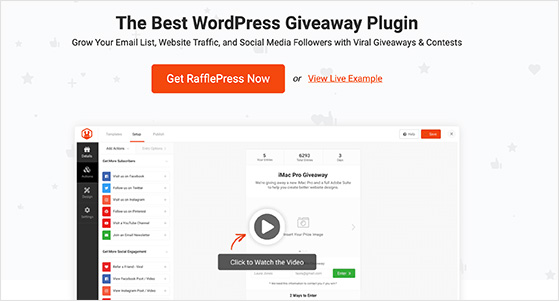
RafflePress is the giveaway builder I rely on when I want something quick, clean, and easy for beginners. You can set the prize, entry actions, dates, rules, and confirmation messages in a few clicks. It handles the entry tracking that Uncanny Automator will use to trigger each notification.
Uncanny Automator Pro + Dynamic Content Addon
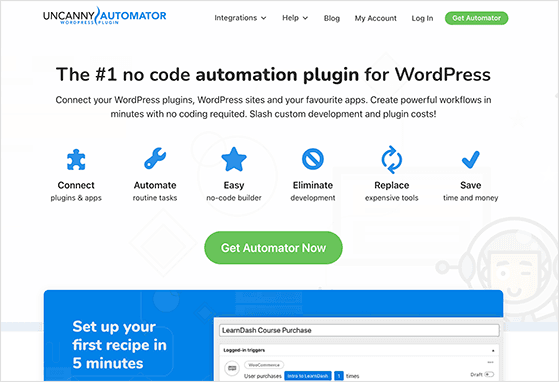
Uncanny Automator connects your WordPress tools so they can talk to each other. With the Pro plan and the Dynamic Content Addon, you can pull live giveaway data like the entrant’s first name, city, and the giveaway title. You can then display that data anywhere on your site as a real-time FOMO notification.
Together, these two plugins create a smooth loop: RafflePress records the entry, Automator detects it, and your site instantly shows a fresh social proof message.
Now that you have the tools in place, you can start setting up the notifications that will appear on your site.
Step 1. Install RafflePress and Uncanny Automator
Before we start creating some FOMO, you’ll need to install both RafflePress and Uncanny Automator.
Installing RafflePress:
- Download the RafflePress Pro plugin from your member dashboard area. If you do not have a RafflePress account, you can get RafflePress Pro to create one.
- Copy your license key, you will need this to activate the plugin later.
- Log in to your /wp-admin/ and navigate to Plugins » Add New. Click on the Upload Plugin button.
- Select the RafflePress plugin zip file (“rafflepress-…pro.zip”) that you downloaded and click on Install Now button.
- Click the Activate Plugin button and then enter your license key and click Verify key.
See our guide for a more detailed walkthrough or to watch the installation video.
Installing Uncanny Automator:
- From your WordPress Admin Dashboard /wp-admin/, navigate to Plugins » Add new. In the search bar, enter “uncanny automator” and click Install and Activate. (This installs the free version of Uncanny Automator which must be active to use Automator Pro features.)
- Purchase your Automator Pro – Elite license from the Automator pricing page.
- Once purchased, you can download the latest version of Uncanny Automator Pro inside your Automator account.
- After downloading the .zip file, navigate to Plugins » Add New in /wp-admin/. Click the Upload Plugin button, select the Pro .zip file then install and activate the plugin.
- Once activated, be sure to visit Automator » Settings in /wp-admin/ to enter your license key (in your purchase confirmation email).
For a more detailed walkthrough, see this Uncanny Automator installation guide.
Step 2. Add Your Giveaway to WordPress
You now need a live giveaway for Automator to monitor. In RafflePress, you can set this up in a few minutes by choosing a giveaway template, adding your prize, and defining the entry actions you want people to complete.

I usually add actions like “Join the email list,” “Visit a page,” or “Follow on social media,” because they help you grow while the contest runs.
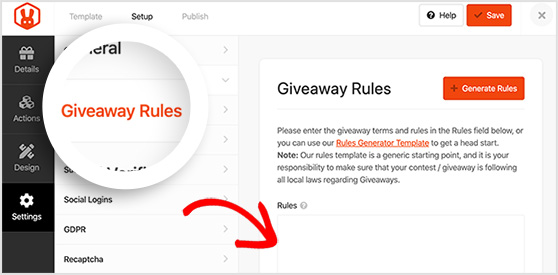
You can also customise the design, set the start and end dates, write the rules, and preview everything before publishing.
Once the giveaway is live, WordPress can record each new entrant, which is what triggers your FOMO notifications. If you want the full setup steps, see our guide on how to create an online contest in WordPress.
Step 3: Install the Dynamic Content Addon
Automator Pro – Elite comes with the Dynamic Content Addon. But before you can use it, you have to install it.
- From your WordPress Admin Dashboard /wp-admin/, navigate to Automator » Addons.
- Scroll down to the “Only Available in Elite” section.
- Click Install addon in the Dynamic Content tile.
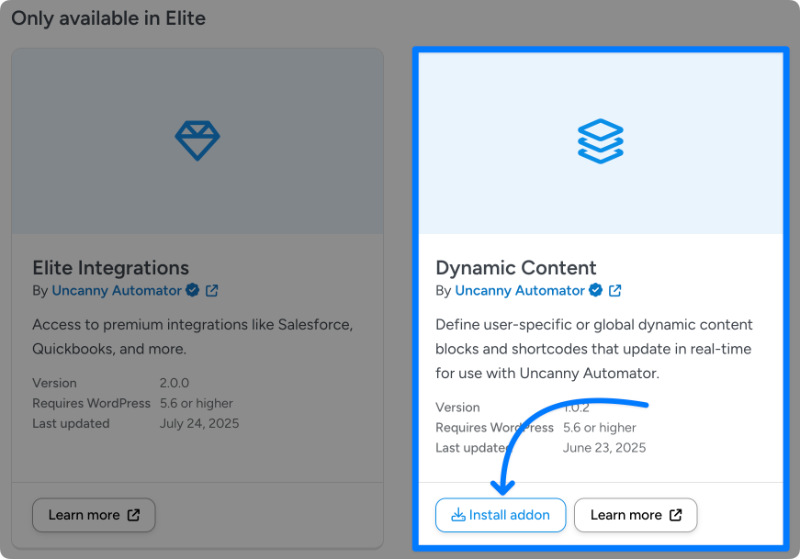
For more detailed instructions, see this guide on installing the dynamic content addon.
Step 4: Create a Dynamic Content Block
From your WordPress Admin Dashboard, navigate to Automator » Dynamic content blocks and click Add new dynamic content block.
Automator will present you with an editor that looks just like the Gutenberg block editor. There are just two things you need to do:
- Add a title to the block. For example, my block has the title, “Someone Just Entered…”.
- Ensure that the block type is “Global”.
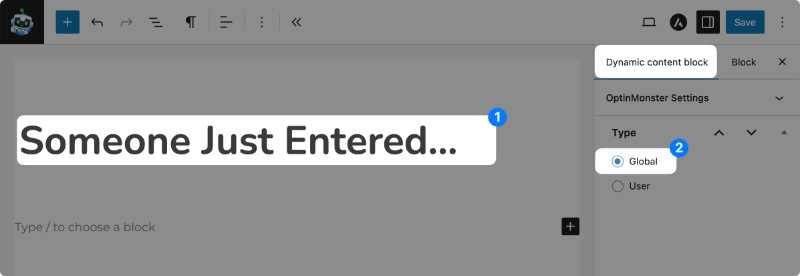
For now, we’re keeping things pretty simple. (And don’t worry about styling. I’ll give you some styling tips later on.)
Once you’re finished, click Save.
Step 5: Place Your Dynamic Content Block
Return to the Dynamic Content Blocks page and copy the shortcode for your new block.
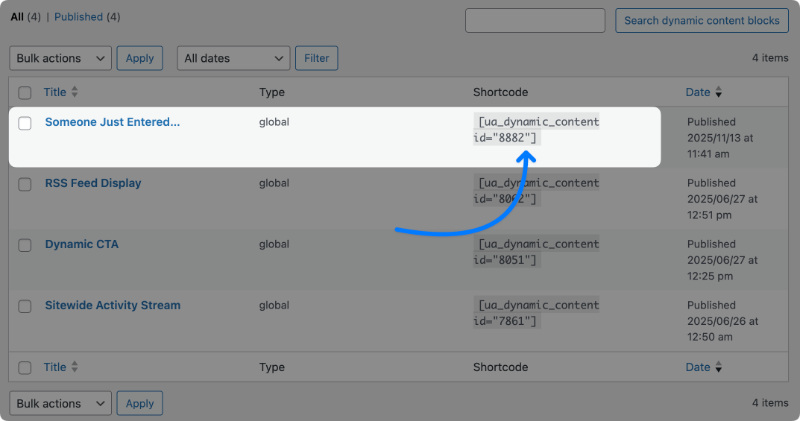
Navigate to the post(s) or page(s) where you want to display these FOMO notifications. If you’re using the Gutenberg block editor, simply paste the shortcode into a Shortcode block.
Once you’re finished, click Save.
Step 6: Create a New Automator Recipe
From your WordPress Admin Dashboard, navigate to Automator » Add new recipe. In the modal that appears, select Everyone. This will allow you to create notifications when anyone enters your giveaway contest, not just logged-in users.

Now, give your recipe a name that makes it easy to recognize at a glance. For example, I have named my recipe, “‘Someone Just Entered…’ FOMO Message”.
Step 7: Configure RafflePress Entry Trigger
In the Trigger panel, from the menu of available integrations, select RafflePress.
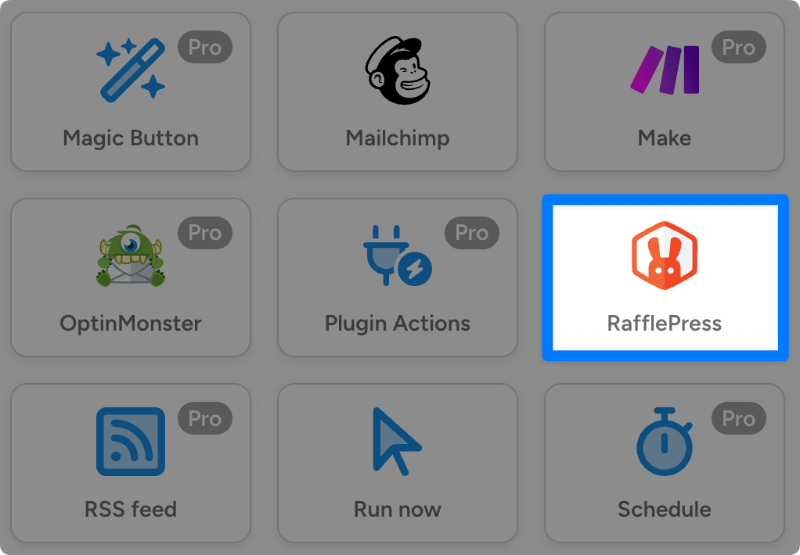
From the dropdown list that appears, select Someone registers for a giveaway.
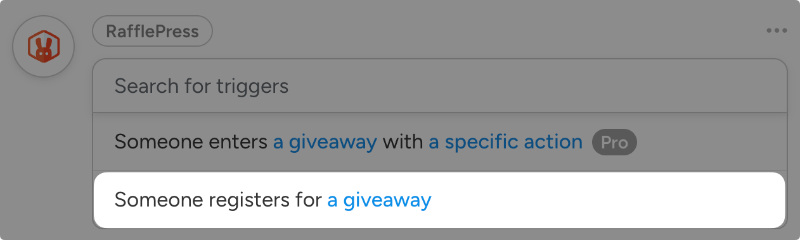
Automator will prompt you to select a giveaway. Once you’re finished, click Save.
Step 8: Configure FOMO Message
Now comes the fun part.
In the Actions panel, click Add action and select Dynamic content.
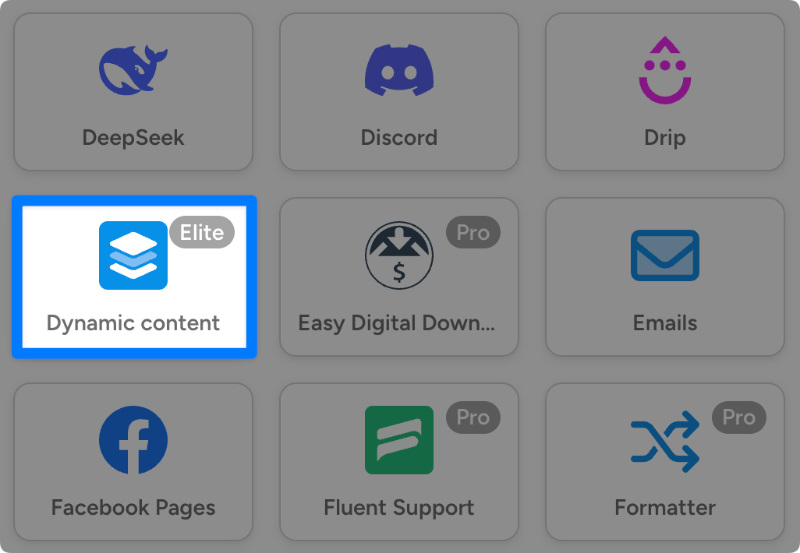
From the dropdown list that appears, select “Update a global dynamic content block”.
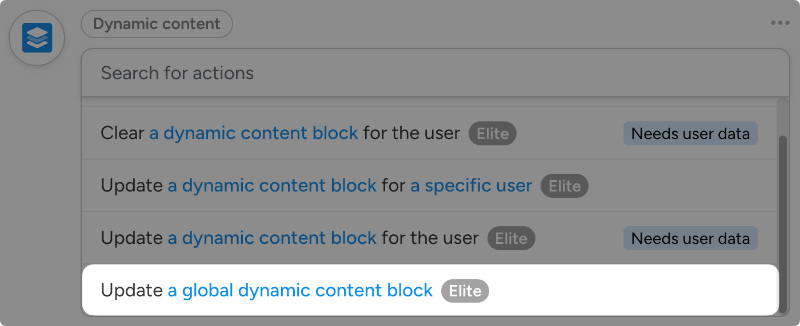
Automator will present you with a form to draft the notification you want to appear live on your site when someone enters a giveaway.
First, in the Block field, select the dynamic block that you created in Step 4. For me, that’s the “Someone Just Entered…” block.
Next, select the Mode. You can either:
- Replace: Every time there is a new entry into your giveaway, Automator will replace the content within the dynamic content block with new content.
- Append: Every time there is a new entry in your giveaway, Automator will add the new content to the existing content within the dynamic block.
Now, in the Content field, you can draft the message that you want to have appear in your notification. Make sure to add personalization and social proof features to this notification using tokens.
To use a token, click the Asterisk in a field and select the corresponding token that represents the data you want from the dropdown list. For example, I used the “Contestant Name” and “Name” tokens from the RafflePress trigger.
Your form might look something like this:

Note: Automator will retrieve the fields from your RafflePress giveaway entry form and return them as tokens. If you are going to include information such as names and locations, make sure to disclose that in your Privacy Policy and Terms and Conditions.
Once you’re satisfied with your notification, click Save.
Step 9: Create Some FOMO
You’re just about ready to capitalize on some FOMO. All you have to do is toggle the recipe from Draft to Live.
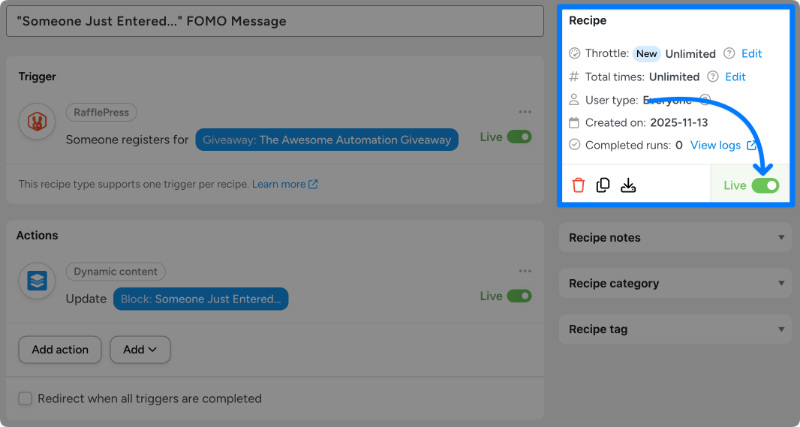
You can now visit the page where you placed your shortcode to watch the message update in real time.
That’s it! You’re ready to generate some FOMO amongst your site visitors.
Best Practices for FOMO Notifications
I’ve tested a lot of small tweaks over the years, and the settings that work best usually follow the same pattern. The goal is simple, keep the message quick, honest, and readable so visitors feel encouraged to enter, not pressured.
These are the settings I return to because they keep the notifications helpful without overwhelming visitors.
- Timing & frequency. Show each notice for 8–12 seconds before erasing it. Use Automator’s “throttle” feature to keep notifications to once every 20–30 seconds so it feels natural. Those ranges align with what high-performing onsite popups do when they’re paced well.
- Freshness window. Reset the dynamic content block every 24-48 hours so the messages feel fresh and live.
- Privacy first. Use first name + city or go anonymous: “Someone in Geneva just entered…”. Link to your privacy policy in your giveaway for clarity.
- Clear, short copy. Lead with a name or identifier and keep it under 120 characters. Example: “Jordan from Geneva just entered our Summer Camera Giveaway Contest.”
- Clean design, accessible text. Less is more. Keep your content block and popups simple with solid contrast and a readable font size.
- Ethics > tricks. Never fake entries or scarcity. Dishonest cues erode trust and can cut long-term results.
- A/B tests worth running. Try small changes for each giveaway. “just entered” vs. “just joined”; with/without city; different dwell times; bottom-left vs. bottom-right placement.
- Measure the lift. Compare the giveaway’s entry rate with notifications on vs. off and log events to your analytics so you can prove impact over time.
FAQs on FOMO & Social Proof Notifications for Giveaways
Real-time social proof helps visitors feel part of the moment.
With RafflePress and Uncanny Automator, I’ve turned static giveaway pages into energetic hubs of engagement. All without extra manual effort, so I have lots of time to work on my next giveaway.
If you’re ready to try it, set up the tools above and add a small, tasteful notification to your giveaway page. Then watch the entries rise, one toast at a time.
You may also find the following guides helpful:
- How to Add a Countdown Timer to Your Giveaway
- Best WordPress FOMO Plugins to Increase Your Conversions
- Ways to Automate Customer Engagement in WordPress
- How to Create a Viral Giveaway Calendar to Grow Your List
If you liked this article, please subscribe to our YouTube Channel for RafflePress video tutorials. You can also find us on Twitter and Facebook.

