How to Build a WordPress Link in Bio Page That Captures Emails
 Stacey Corrin
Stacey Corrin
Stacey Corrin
 John Turner
John Turner
John Turner
TL;DR: How to Build a Link in Bio Page That Captures Emails
You can build a link in bio page on your own WordPress site, one home you control instead of a rented subdomain. The version that captures emails through a giveaway is a paid setup, but every signup it collects is yours to keep.
- Install SeedProd – the free version builds the basic page.
- Choose a template – pick a Personal Links style from the library.
- Customize your page – add your profile image, buttons, and social links.
- Embed a giveaway – the part that captures emails, and it needs paid SeedProd plus RafflePress.
- Add a countdown timer – create urgency so visitors act.
- Publish and share – paste your new URL into your Instagram or TikTok bio.
You get one link in your Instagram or TikTok bio. Your blog, your shop, your email list, and your latest giveaway are all fighting over that one slot.
A link in bio page fixes that, and if you already have a WordPress site, you can build one on your own domain. You own the page, the data, and the audience, instead of renting a subdomain from a hosted tool.
The part that turns it into an email machine, a giveaway, is a paid setup. I’ll be straight about what costs money and what doesn’t, then show you how to build it.
What Is a Link in Bio Page (and Why Does It Matter)?
A link in bio page is one mobile-friendly page that holds all the links you’d otherwise have to choose between.
You share a single URL in your Instagram, TikTok, or Twitter bio. Your followers land on a hub with everything: your blog, your shop, your latest giveaway.
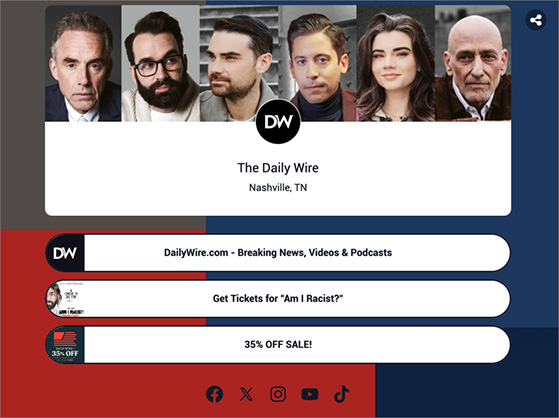
So instead of swapping your profile link every time you post something new, you keep one permanent page.
Here’s what can go on it:
- Promote your website, blog, products, services, and social channels in one place.
- Point visitors to specific pages with clear calls to action.
- Add a signup form or a giveaway to capture leads.
- Track which links get clicked so you know what your audience actually wants.
You also get to decide what leads the page. Push your newest post, your shop, or a giveaway you want to promote right now straight to the top.
Most people tapping that link are on their phones, so design it thumb-first. That means big tap targets, high contrast, and one clear action visible without scrolling.
Should You Build Your Link in Bio Page on WordPress or Use Linktree?
Build it on your own WordPress site. You keep the page on your domain, you own the data, and nothing about your bio page depends on another company’s pricing decisions.
The free angle isn’t the reason, and I won’t pretend it is. Linktree hides its good features behind a subscription, and the WordPress route costs money too once you want the giveaway that captures emails. What you’re really choosing here is ownership.
The quick alternative is a hosted tool like Linktree or Beacons. They set up fast, but their paid plans run from about $5 a month to $35 a month once you want a custom domain or better analytics, and Beacons sits in the same range.
A page on your own domain does more than dodge a subscription. Every click lands on your site, which feeds your SEO instead of theirs.
And when someone enters a giveaway or signs up, that contact is yours to export to your email tool. It isn’t locked inside a platform that can change its rules or its pricing whenever it likes.
| Tool | Cost | Own Your Domain | Own Your Data & Audience | Embed a Giveaway to Capture Emails |
|---|---|---|---|---|
| Linktree (free) | $0, rented subdomain | No | No | No |
| Linktree Pro | ~$144/year subscription | Yes | Limited | No |
| Beacons (Creator Pro) | From ~$120/year subscription | Yes | Limited | No |
| WordPress + SeedProd + RafflePress | Paid plans, on your own site | Yes (your domain) | Yes | Yes (paid SeedProd plan + RafflePress) |
That giveaway row is the part no hosted tool really matches. It’s also the stack I use for my own bio pages: SeedProd and RafflePress.
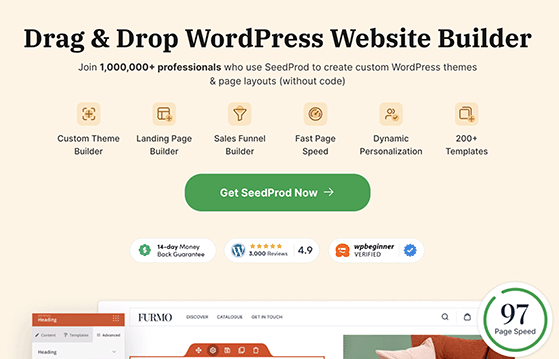
SeedProd is a drag-and-drop website builder for WordPress. You build a mobile-responsive page by dragging elements into place, no code, and a basic bio page takes about 15 minutes.
RafflePress is a WordPress giveaway plugin. Pair it with a paid SeedProd plan and the Giveaway block drops your contest right inside the editor, no jumping between screens.
I’ve spent years writing about giveaways, and the pattern users report is consistent. One RafflePress user described how it “simplifies collecting emails, web traffic, and social media followers,” which is exactly the job a bio page giveaway does.
There’s a catch, though. The giveaway isn’t the free part.
The Giveaway block is a paid SeedProd feature, and connecting an email service to deliver those signups is a paid RafflePress feature. Treat the free versions of both as a test drive.
You can also build a bio page with the native WordPress block editor and no plugin at all. It works, but you’re laying out and styling every button by hand.
I use SeedProd because it ships link in bio templates and styling controls, so there’s far less fiddling. If you’d rather weigh hosted options too, I compared the main link in bio tools separately, and the same SeedProd and RafflePress combo also powers a full giveaway landing page if you want a dedicated contest page later.
Free: Download Our Giveaway Playbook
Templates, prize ideas, and promotion strategies in one guide.
How to Build a Link in Bio Page in WordPress (Step by Step)
Now let’s build one.
Here’s the shape of it:
- Install SeedProd.
- Choose a link in bio template.
- Customize your page and embed a giveaway.
- Publish and add the link to your bio.
Step 1. Install SeedProd
Head to the SeedProd website and pick a plan. The free version builds the basic bio page: profile photo, buttons, social links, and images. That’s plenty to get started.
I use SeedProd Pro, and you’ll want a paid plan (Basic or higher) for the part that matters most here: the Giveaway block that embeds a RafflePress contest. The free version of SeedProd doesn’t include it.
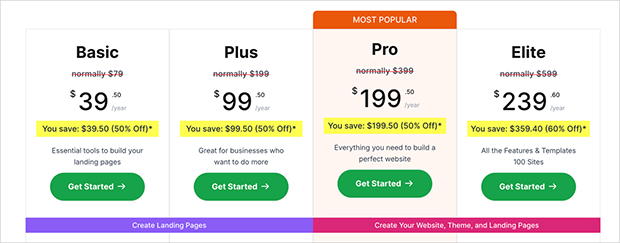
Once you’ve signed up and downloaded the plugin, install and activate it on your site. If you get stuck, here’s a guide on how to install SeedProd.
Step 2. Choose the Perfect Template
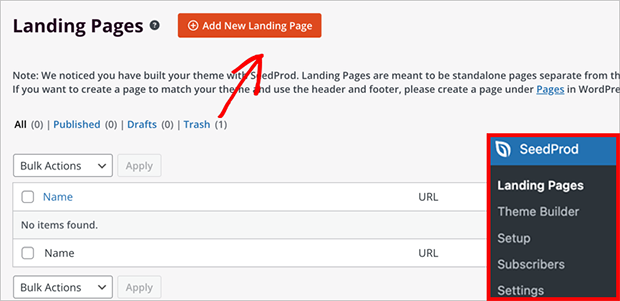
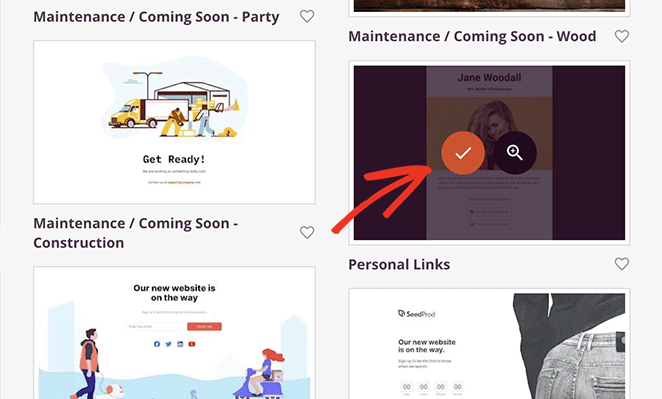
With SeedProd active, pick a template for your link in bio page. From your WordPress dashboard, go to SeedProd » Landing Pages and click the ‘Add New Landing Page’ button.
SeedProd has hundreds of ready-made templates, including ones built specifically for link in bio pages. So you’re not staring at a blank screen.
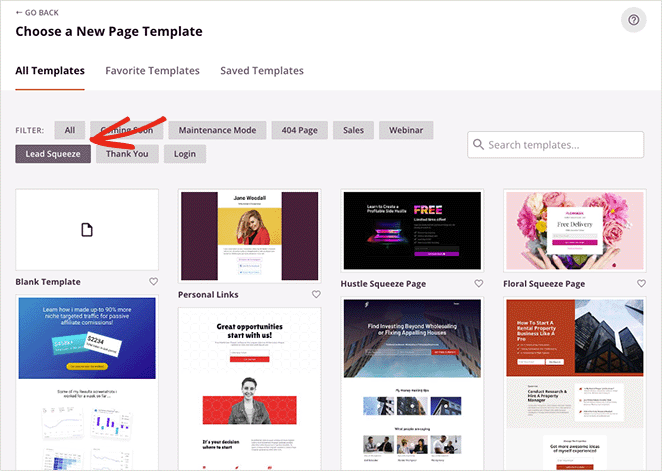
For this guide, I’ll use the ‘Personal Links’ template. Hover over it and click the checkmark icon to select it.
Now name your page. SeedProd builds a URL from the name automatically, and you can edit it now or later in the settings.
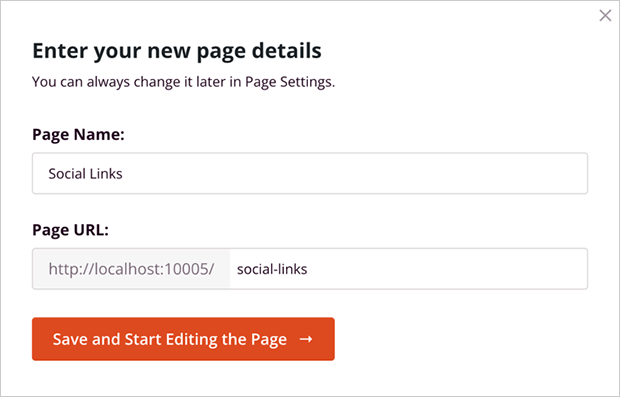
Happy with those details? Click the ‘Save and Start Editing the Page’ button.
Step 3. Customize Your Link in Bio Page
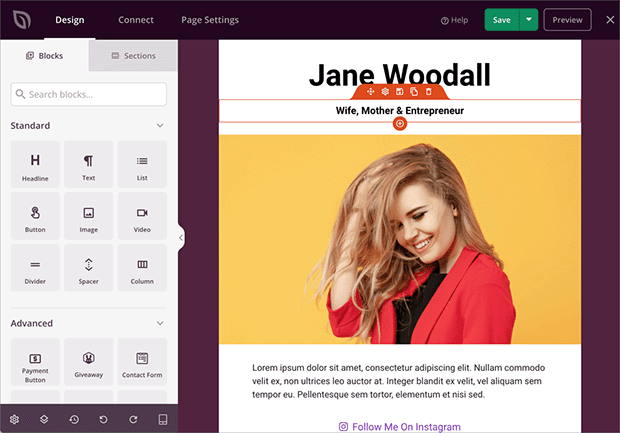
The drag-and-drop builder is where your page takes shape. Click any element and its settings open in the left-hand menu.
From here you can add new blocks, rearrange the ones you have, and style everything in place.
Show Your Branding
Your profile photo is the first thing followers recognize, so swap the placeholder first. Click the existing image, then upload a new photo or pick one from your media library.
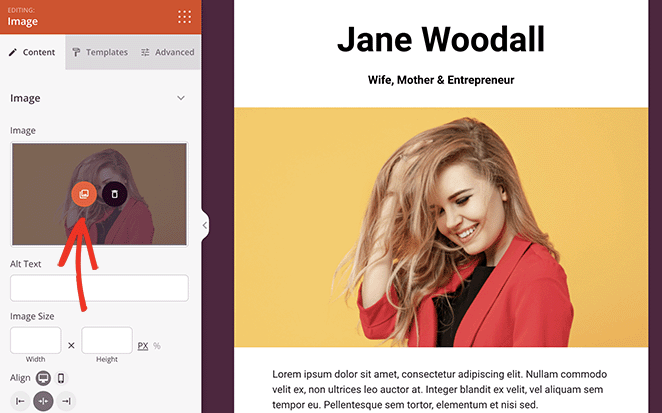
Resize it with the width and height settings.
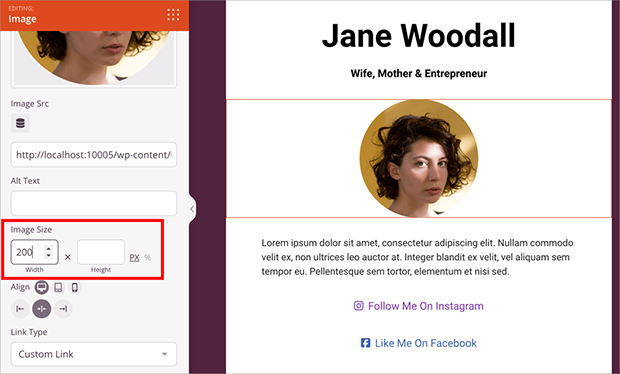
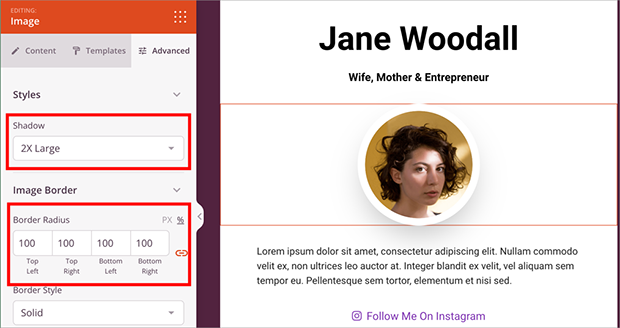
I like a circular profile image with a soft drop shadow. It keeps the design clean and still stands out.
For more control, open the Advanced tab. You can add a drop shadow, round the corners, or give your image a colored border.
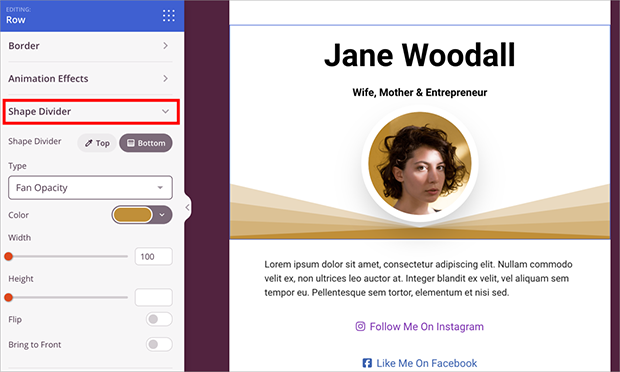
Want the header to pop? Add a Shape Divider. SeedProd has a range of shapes you can drop at the top or bottom of any row to add interest and guide the eye.
Add Your Content
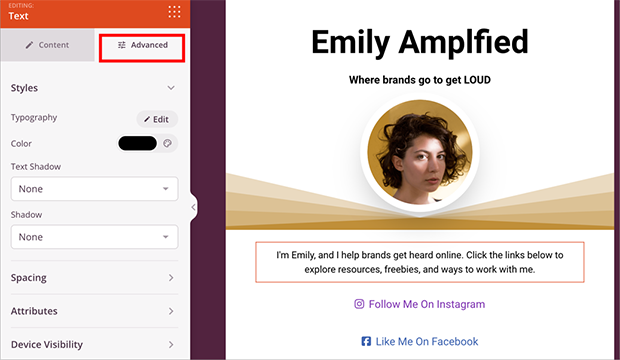
Next, the text: your main heading, subheadings, and any description. Like the image block, click a text element to edit it right on the page.
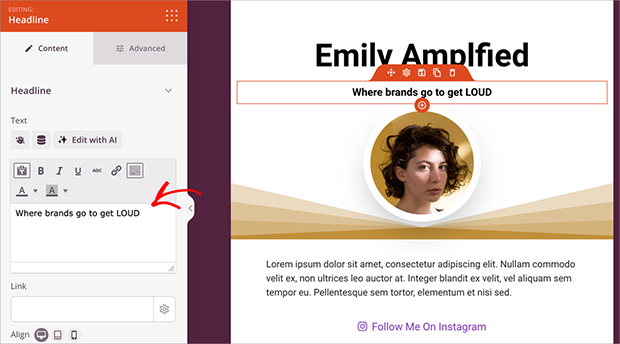
The Advanced tab handles the fonts, colors, and spacing.
Display Your Social Links
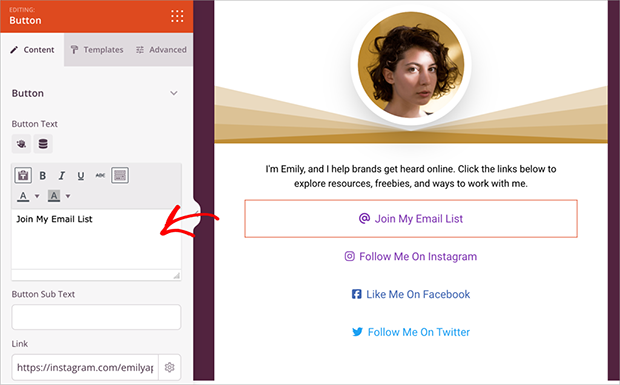
The links are the whole point, so this is where you send visitors to the pages that matter most. The Personal Links template already has a stack of button links, which works well for social profiles.
To edit a button, click it and paste the URL of the page you want it to open.
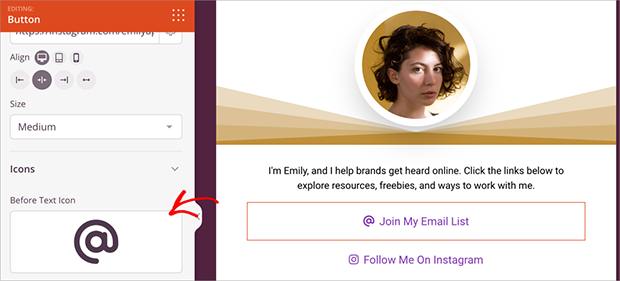
Add icons so visitors can see at a glance where each link leads. Pick from the icon library.
The Advanced tab covers the colors, borders, and the rest of the styling.
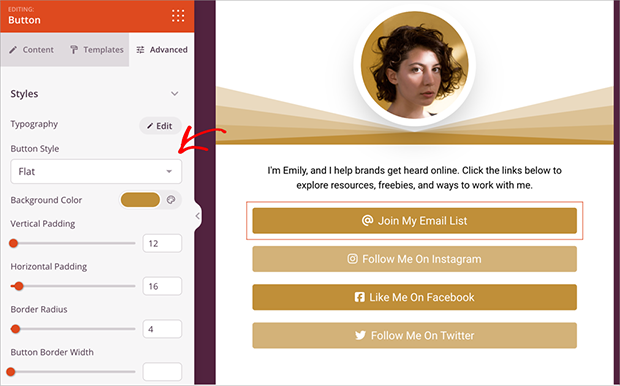
SeedProd stacks your buttons vertically, which is the link-list look most bio pages use. There’s no built-in accordion menu, so if you want dropdown-style sections, group related buttons under short text headings instead.
Embed a Giveaway
A giveaway is the fastest way to turn a bio page into an email-capture tool. This is the paid part: you need a SeedProd plan with the Giveaway block plus RafflePress to run the contest.
Build the giveaway first. Follow this guide to create a giveaway in WordPress, then come back and add it to your page.
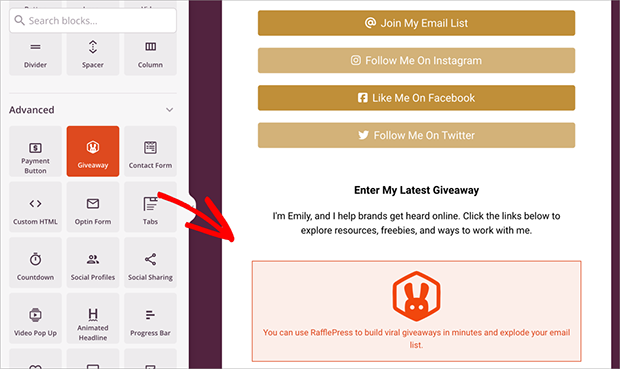
To embed it, find the RafflePress block in the left-hand panel and drag it onto your page.
Then pick your giveaway from the dropdown menu.
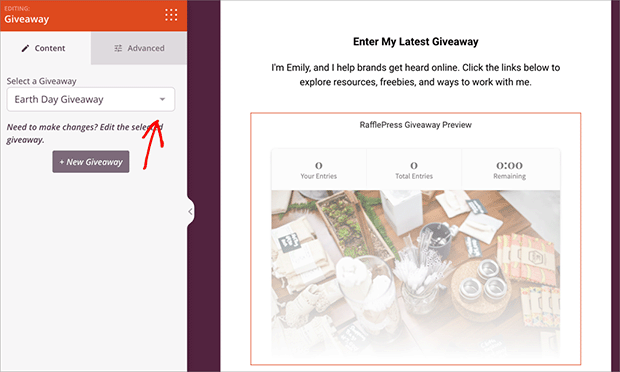
Once the page is live, visitors can check your social links and enter your giveaway in one place. Connecting that giveaway to an email service, so entrants flow straight into your list, is a paid RafflePress feature and a natural next step when you want to grow your email list in earnest.
Create Urgency
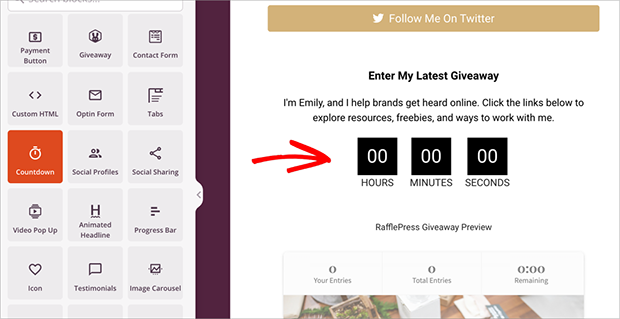
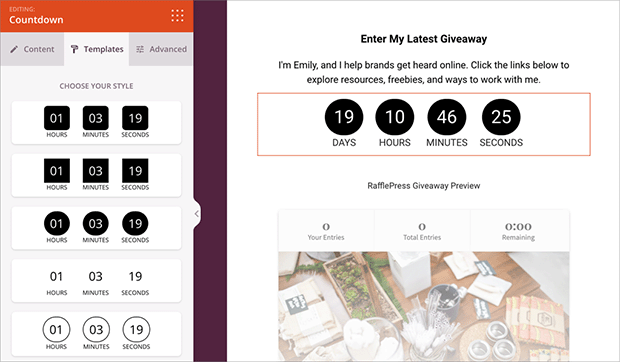
A countdown timer nudges visitors to act while there’s still time, which helps when a giveaway or promotion has an end date. SeedProd has a built-in Countdown block for this.
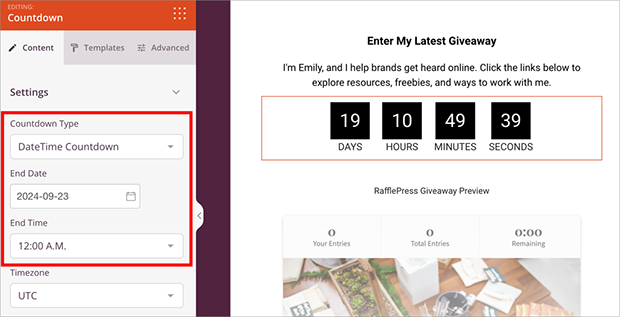
Drag the Countdown block onto your page and set the end date and time.
You can also pick from several pre-designed styles to match your branding.
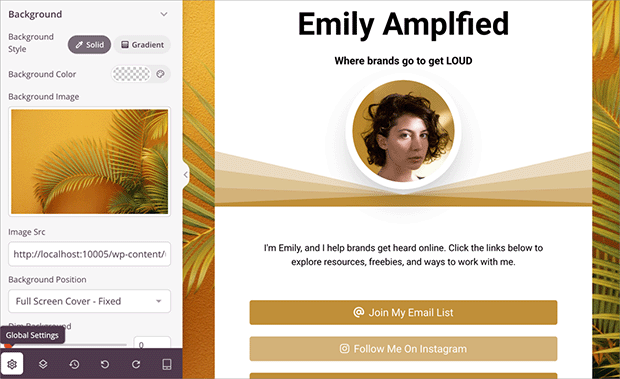
Keep tweaking until the page looks the way you want. Here, I clicked the Global Styling icon to change the page’s background image.
Step 4. Publish Your Link in Bio Page
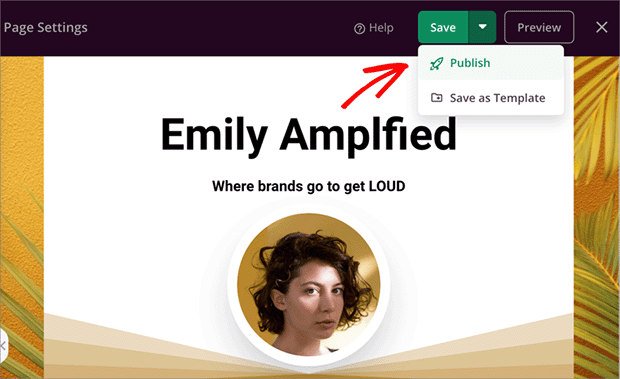
Your page is customized, so it’s time to share it. In the top right of the editor, click the green ‘Save’ button, then the downward arrow next to it, and choose ‘Publish.’
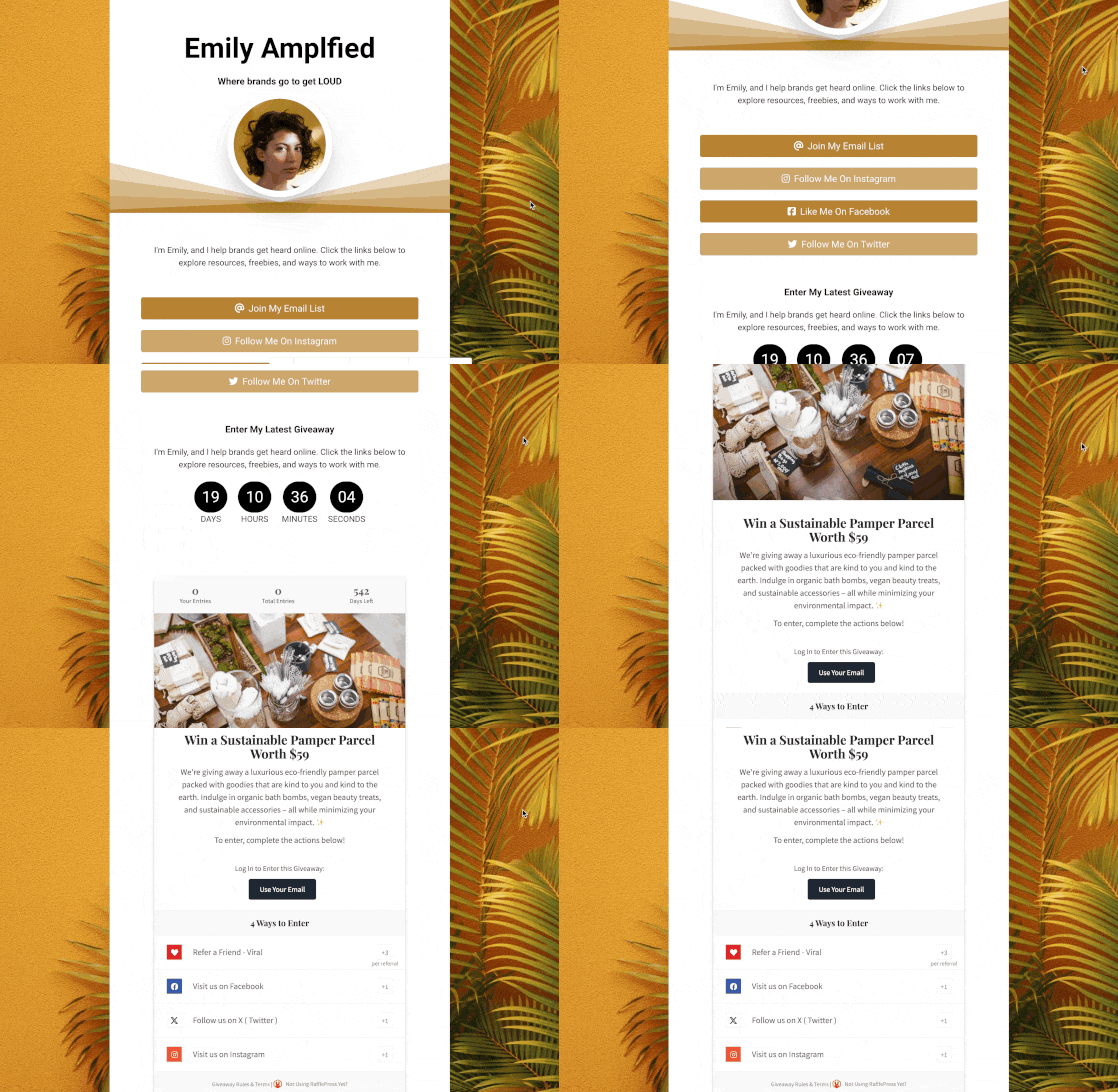
Your link in bio page is live. Open it to see how it looks.
To share it, copy your page URL. On Instagram, go to Edit Profile and paste it into the Website field. On TikTok, go to Edit profile, tap Website, and paste the same URL. (TikTok shows the Website field once your account qualifies for it.)
Add a giveaway to your bio page and capture emails
RafflePress adds a giveaway block right inside SeedProd, so your link in bio can collect entries and grow your audience from the same page.
Get RafflePressHow to Track Clicks on Your Link in Bio Page
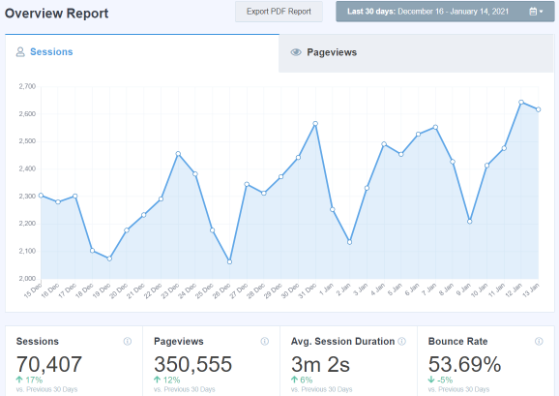
Once your page is live, watch which links people actually tap. That tells you whether your giveaway button is pulling its weight or just sitting there.
MonsterInsights shows link clicks right inside your WordPress dashboard, so you can compare clicks to your giveaway against your other links. Use it to move your winners higher and cut the ones nobody taps.
FAQs About Link in Bio Pages
Is a link in bio page still worth it in 2026?
Yes. You still get only one link in most social bios, and a link in bio page turns that single slot into a hub for your blog, shop, and offers. Building it on your own WordPress site is the version that lasts, because you keep the traffic and the data instead of renting them from a hosted tool.
How do I create a clickable link in WordPress?
Add a Button block or a link inside a Buttons block, then paste your destination URL into the link field. In SeedProd’s editor, you click a button element, type the link, and it becomes tappable on the published page. For a link in bio layout, stack several buttons so each one points to a different page.
Can I collect email addresses from my link in bio page?
Yes, with a giveaway. Embed a RafflePress contest and entrants join with their email address, so entries land as contacts in WordPress. That setup is paid: you need a SeedProd plan with the Giveaway block plus RafflePress, and sending contacts to a service like Mailchimp or ConvertKit is a paid RafflePress feature. You own every contact it collects.
What should I include on my link in bio page?
At a minimum: a profile image, a short bio, and your top three to five links with clear button labels. Add a giveaway if you want to capture emails, and a countdown timer if you’re running something time-limited. Keep it short, because a page with 20 links just hands the decision problem to your visitor.
Does a custom link in bio page actually improve conversions?
It can. A custom page lets you control the full experience, from branding to the exact order of your links, while hosted tools limit what you can add and how it looks. You also decide what leads the page, so you can push a giveaway or a launch to the top the moment it matters, instead of burying it in a generic link list.
How do I add my link in bio page to Instagram or TikTok?
Publish your page in SeedProd and copy its URL. On Instagram, open Edit Profile and paste it into the Website field. On TikTok, open Edit profile, tap Website, and paste the same URL. Your link in bio page is now live and clickable from your profile on both apps.
Create Your Link in Bio Page Today
A link in bio page is worth doing right. Build it on your own site and you keep the traffic, the data, and the audience, whatever a hosted tool decides to charge next year.
Want the version that captures emails? Add a giveaway and start collecting contacts you actually own. Get started with RafflePress.
For even more marketing success, check out our other guides:
- How to Increase Online Sales Through Social Media
- Social Media Contest & Giveaway Ideas
- How to Run a Social Media Contest to Boost Conversions
If you liked this article, please subscribe to our YouTube Channel for RafflePress video tutorials. You can also find us on Twitter and Facebook.


