How to Create a Temporary Admin Account for Support
Here are the easy steps to create a temporary WP admin account for RafflePress Support to quickly troubleshoot your site.
IMPORTANT: Be sure that you have a backup of your site before giving access.
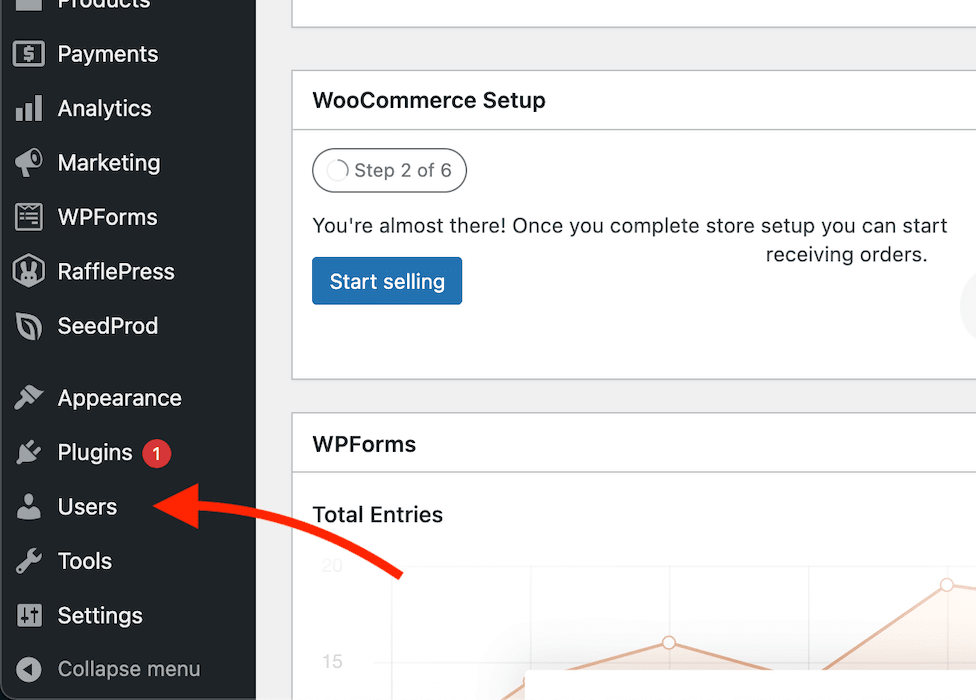
- Click on the Users menu on the WordPress left navigation panel.
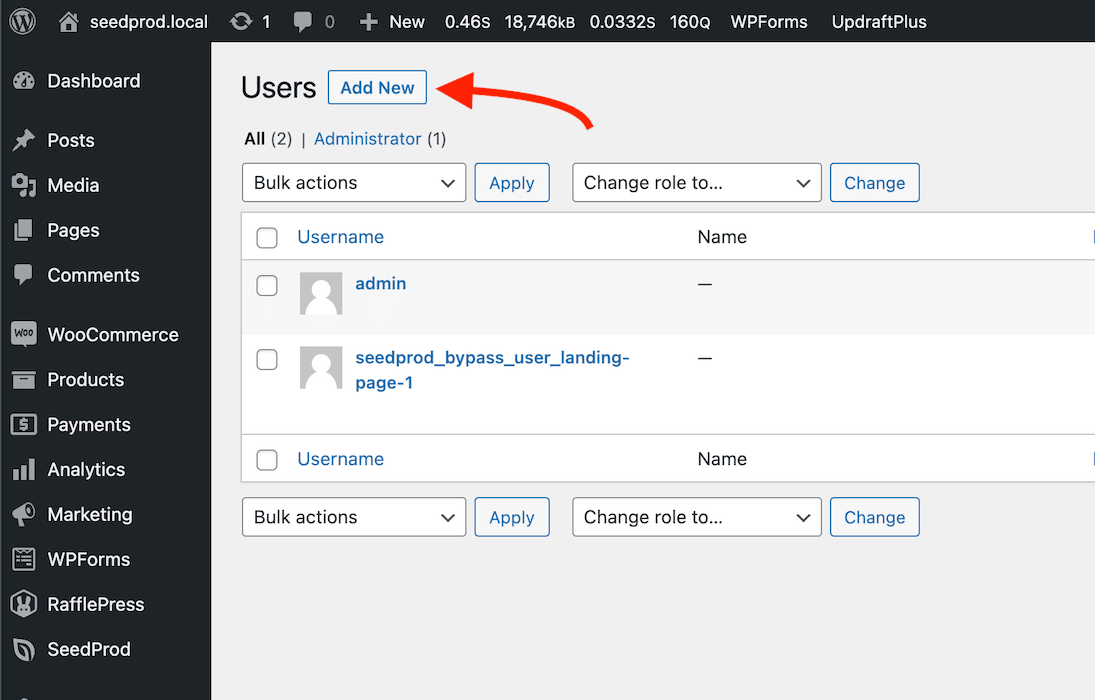
- Click the Add New button at the new top of the Users admin page
- Enter these values for the new user details:
Username: [email protected]
Email: [email protected]
Send User Notification: Checked
Role: Administrator
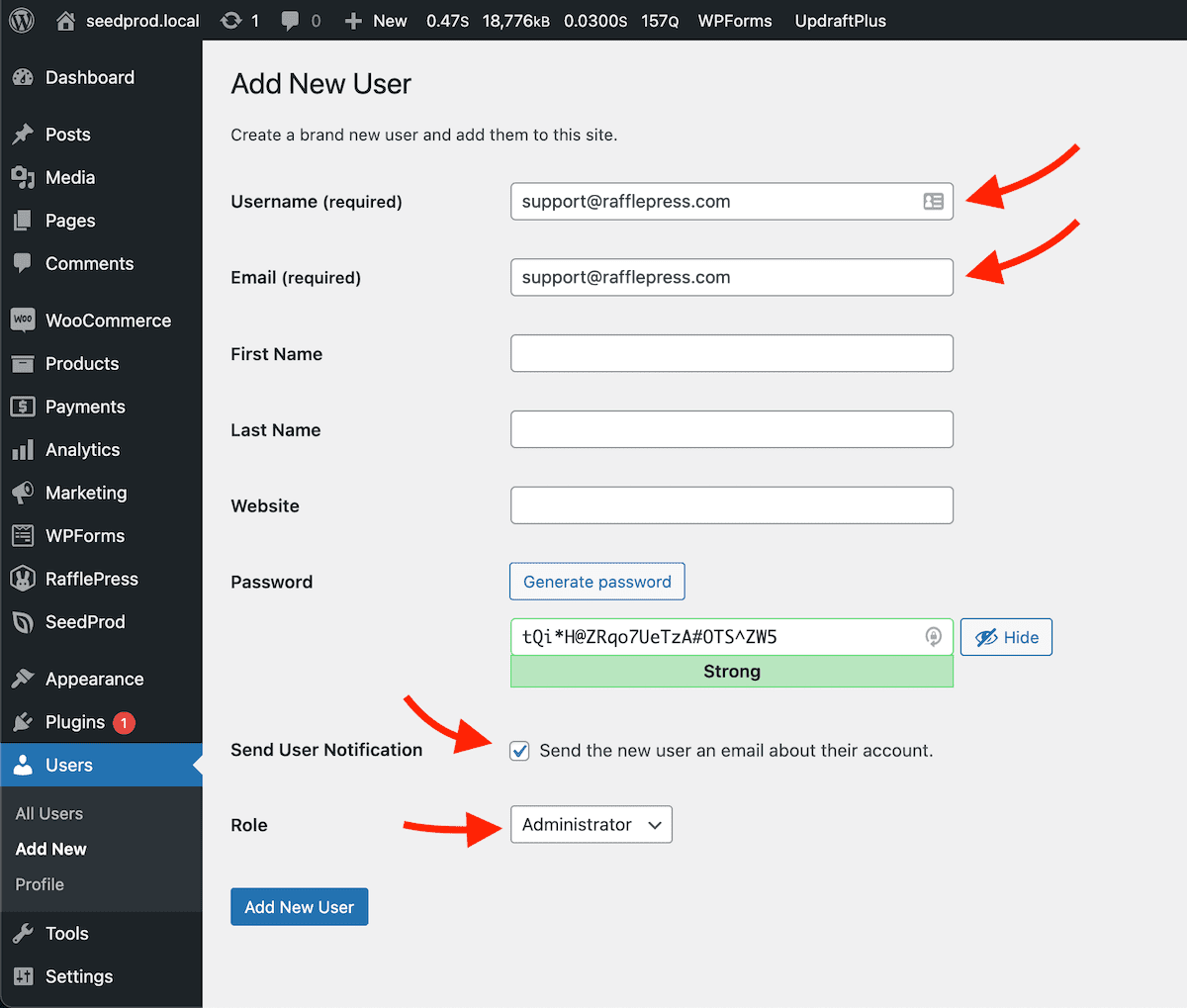
- Click the Add New User button at the bottom of the page.
- That’s it! An automated notification will be sent from your WordPress site to our support team after adding this new user.
NOTE: We highly recommend copying and sending the password in a quick reply within your ticket thread if your site cannot send out emails.
Video Tutorial
Looking for more RafflePress tutorials?
Check out the RafflePress YouTube channel here.
Still need help?
Contact Us